Port WireGuard to ESP32-P4
Build an lwIP WireGuard implementation under pioarduino and verify initialization and basic operation. Fall back to another implementation or SSH jumping if it is not viable.
Open-source firmware that turns the M5Stack Tab5 (ESP32-P4) into a portable thin client with a real keyboard and SSH shell.
Tab5 Thin Client turns the M5Stack Tab5 and the Tab5 Keyboard into an SSH terminal you can carry around.
It connects to servers over Wi-Fi and renders a full ANSI/VT-style terminal on the 1280×720 display —
good enough for vim, htop, and friends.
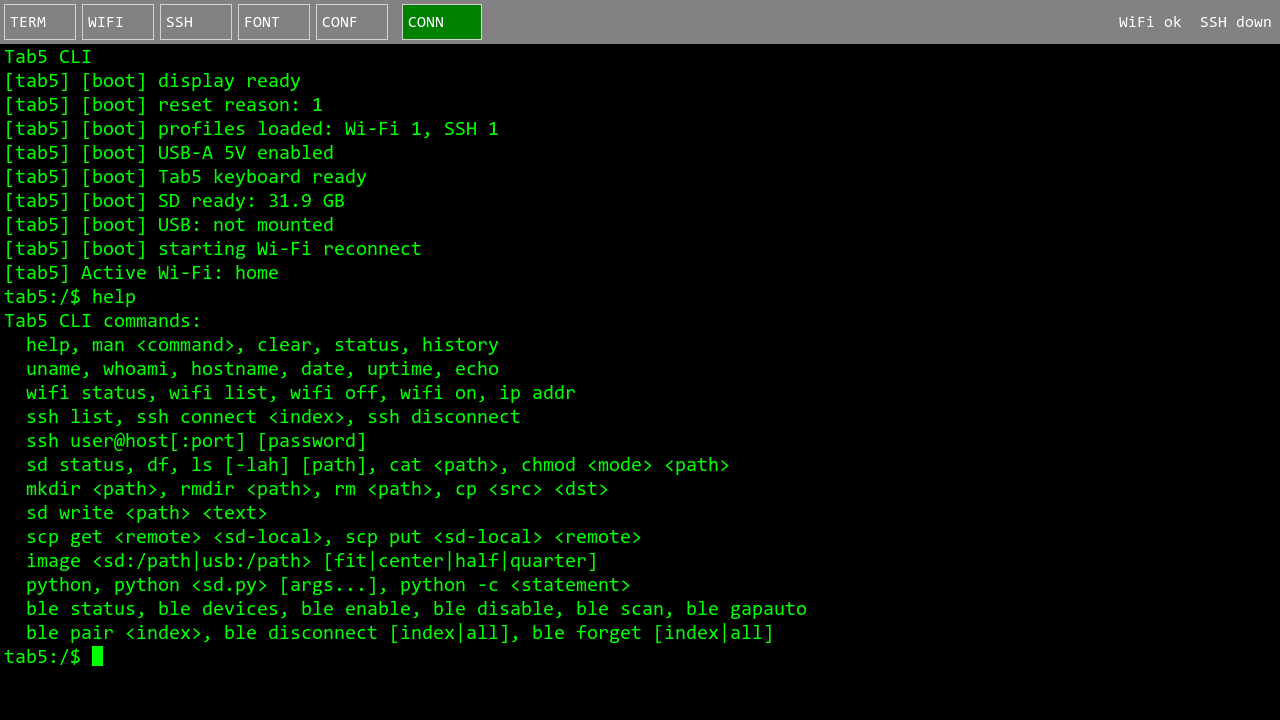
The local CLI right after boot. You can SSH out directly from the built-in Linux-like shell.
SSH via LibSSH-ESP32 with scrollback, command history, 256-color rendering, and US/JP key-layout translation.
Add and edit Wi-Fi / SSH profiles in the on-device UI; they persist to flash and reconnect with one touch.
scp get / put moves files between the SSH host and the microSD card — and the server can see Tab5 storage too.
REPL, one-liners, and .py scripts from the SD card, plus a gfx drawing API backed by M5GFX sprites.
View JPEG / PNG / BMP from microSD, USB storage, or the SSH server in an overlay window; remote files are cached automatically.
Tab5 Keyboard, USB keyboards, and BLE keyboards. Everything is reachable with Esc / Tab navigation.
Renders of the on-device UI, recreated in an LVGL web simulator at 1280×720.
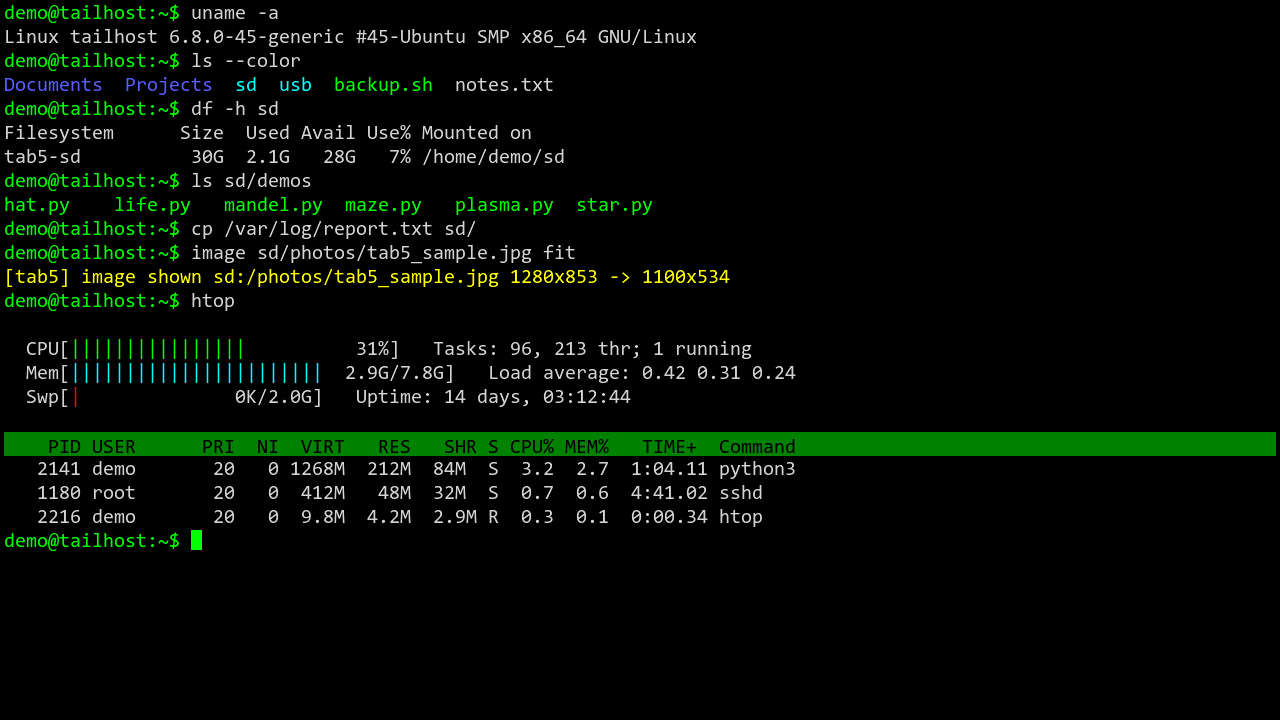
While connected, the menu bar disappears and the whole 1280×720 panel becomes the terminal — 127×29 cells with the default Terminus 10x20 font. ANSI colors, bold, inverse, box-drawing and block characters are all rendered.
At session start the firmware deploys a small FUSE helper to the server, mounting Tab5 storage there as ~/sd and ~/usb so the remote shell can read and write your files directly.
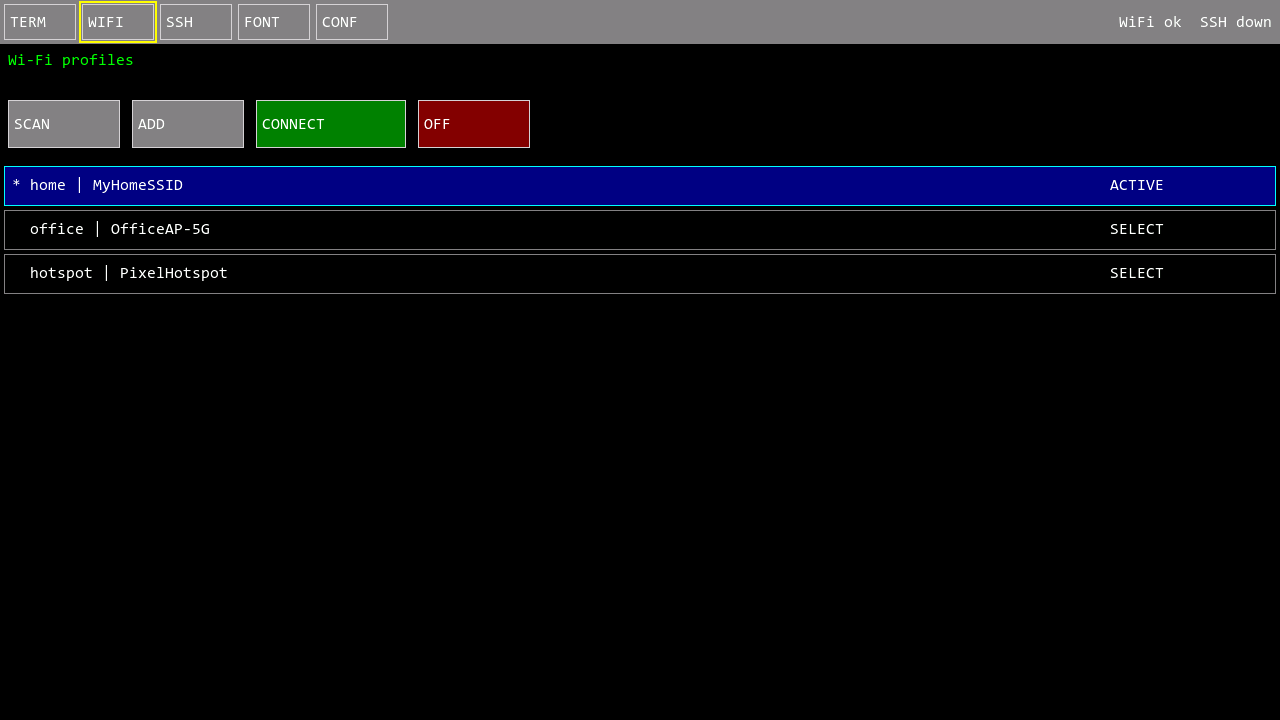
Scan for access points, add and edit profiles, switch networks, and toggle Wi-Fi — all on the device. The focused row is highlighted navy with a cyan border.
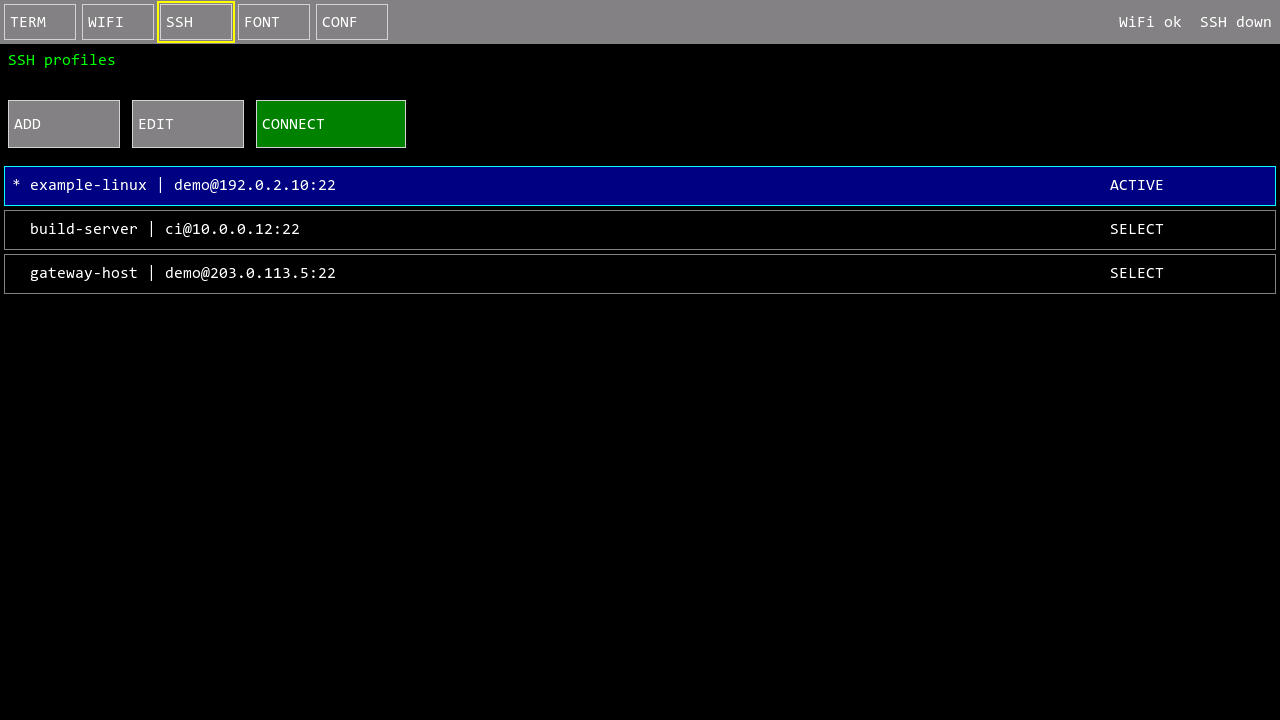
Manage destinations as user@host:port entries. Connect from the UI or with ssh connect 0; direct ssh user@host commands reuse credentials from matching saved profiles.
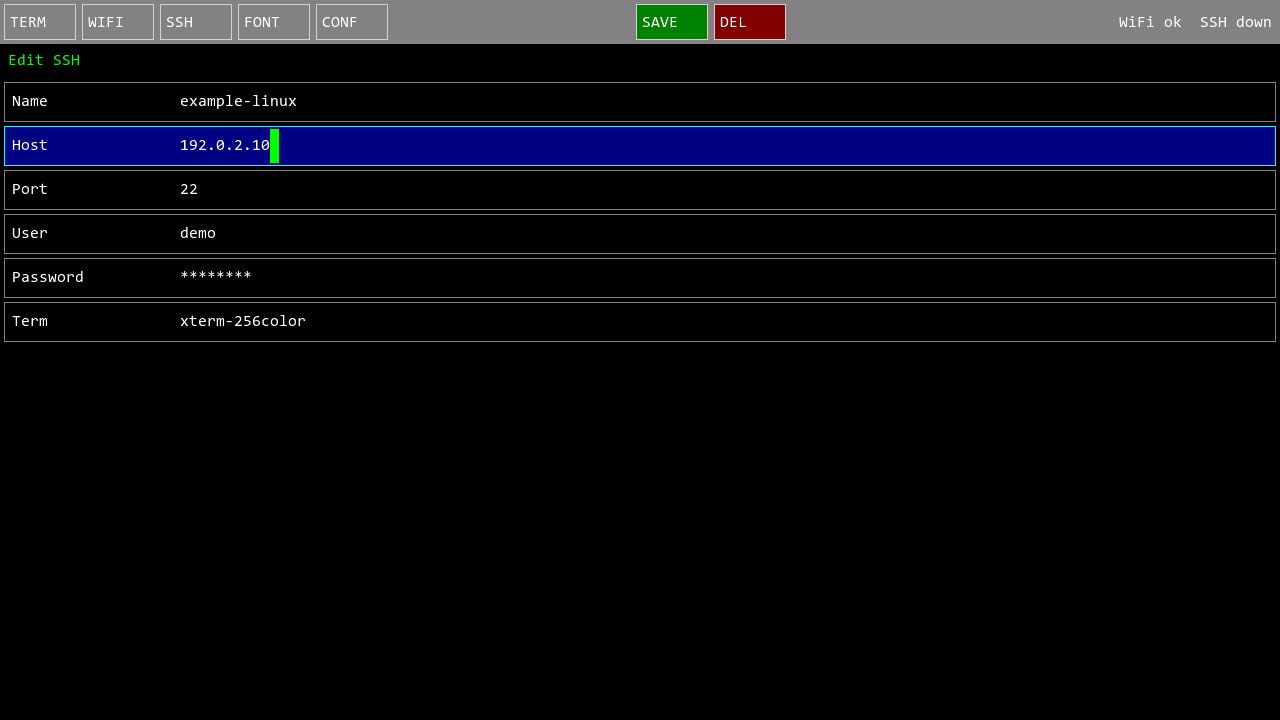
Edit Name / Host / Port / User / Password / Term on screen and press SAVE to persist to flash. Passwords are masked.
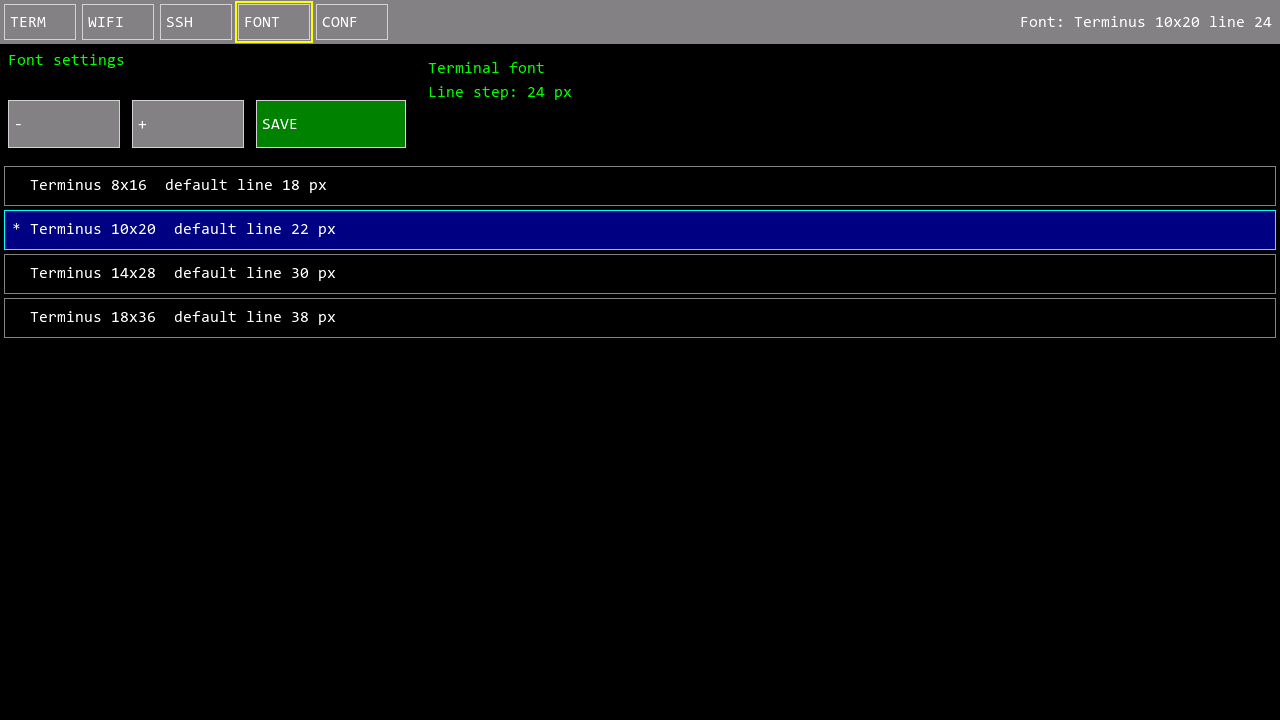
Choose between Terminus 8x16, 10x20, 14x28 and 18x36, and fine-tune the line step with - / + — up to 159×35 cells per screen.
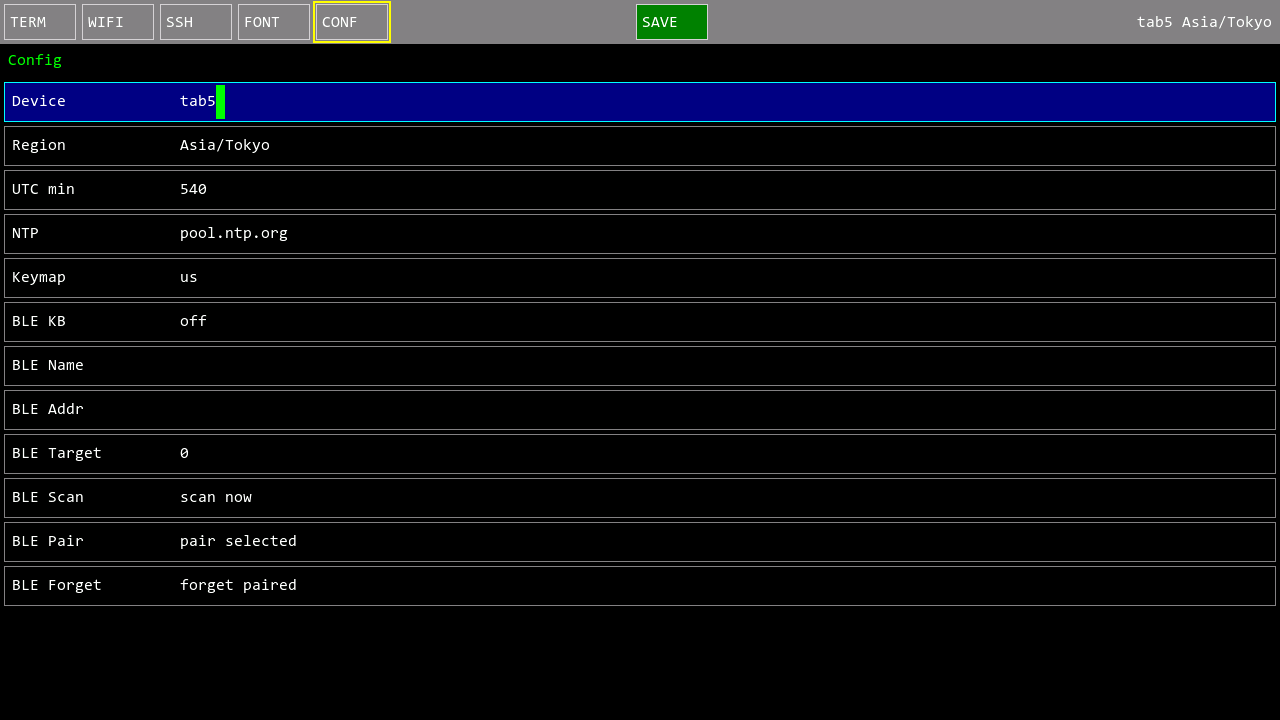
Device name, time zone, NTP server, US/JP keymap, and BLE keyboard scanning and pairing — configuration never needs a host PC.

image sd:/photo.jpg fit shows images from microSD, USB storage, or the SSH server in an overlay window. Remote files are copied to a microSD cache before drawing.
The portrait shown here is an original AI-generated image created for this page.
The emulator implements a VT100/VT220 subset plus xterm extensions of the
ECMA-48 (ANSI X3.64) escape-sequence standard. It advertises
TERM=xterm-256color and negotiates and updates the SSH PTY size (SIGWINCH),
so keyboard-driven TUI apps — vim, htop, less,
ncurses tools, and of course sl — just work.
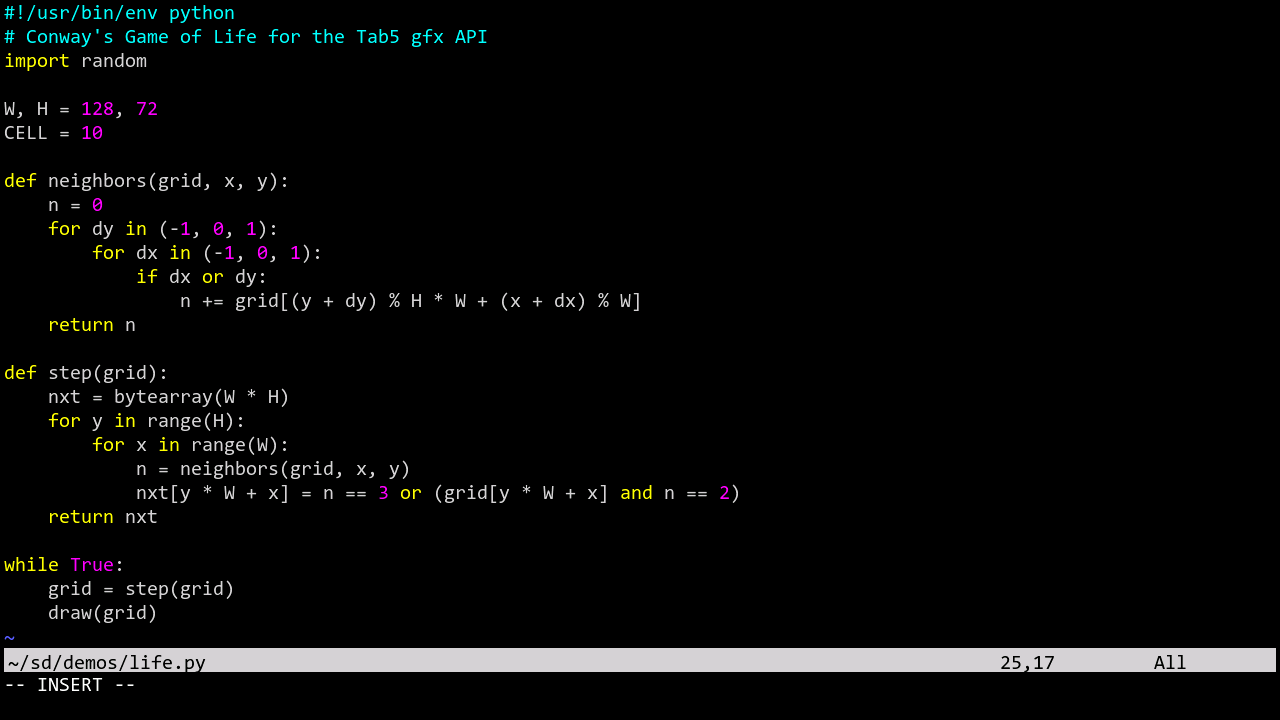
vim works out of the boxThe alternate screen buffer (?1049/?1047/?47), DECSTBM scroll regions, cursor save/restore (DECSC/DECRC and SCOSC/SCORC), and cursor visibility (?25) are implemented — quit vim and your shell screen comes back. 256-color syntax highlighting renders as-is.
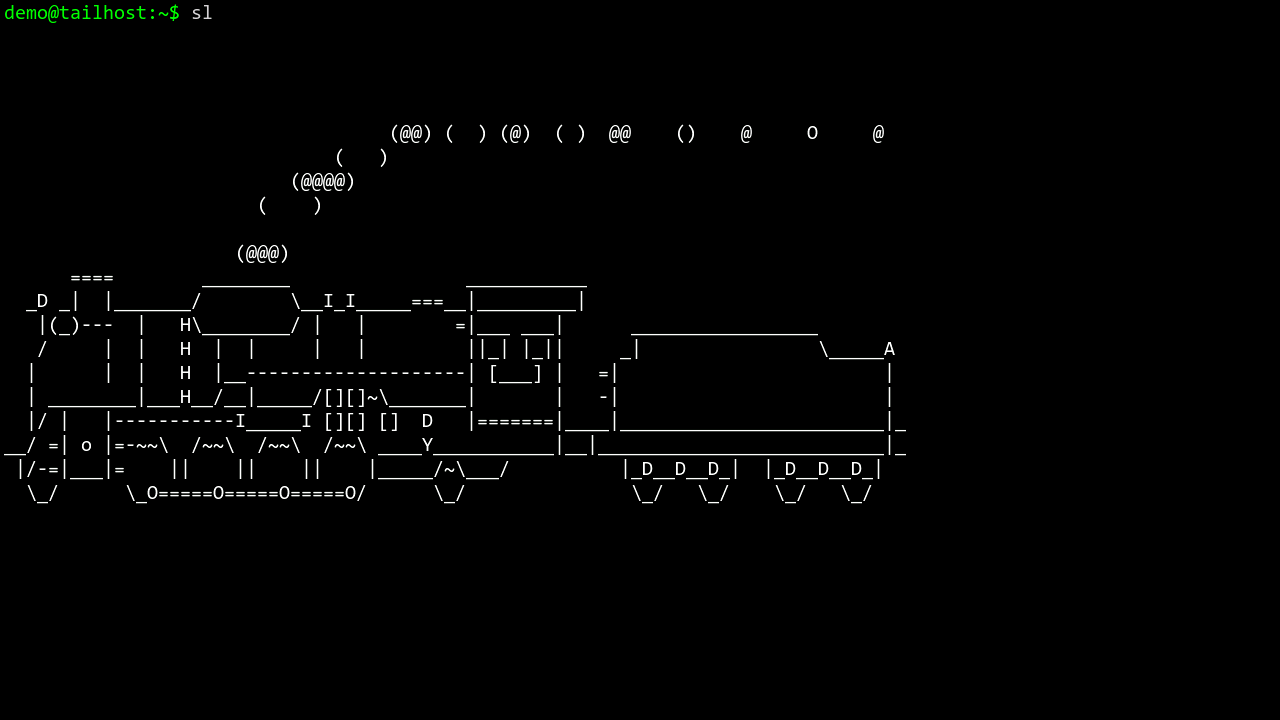
sl runsAbsolute and relative cursor addressing (CUP/HVP/CUU/CUD/CUF/CUB/CHA/VPA), line/character insert and delete (IL/DL/ICH/DCH/ECH), display/line erase (ED/EL), and region scrolling (SU/SD) are all implemented, so full-screen animations that repaint the display render correctly.
| Supported | ECMA-48 CSI cursor and editing set / SGR: bold (as brightness), inverse, ANSI 16 colors, 256-color (38;5/48;5), 24-bit truecolor (38;2/48;2, quantized to RGB565) / alternate screen / scroll regions (DECSTBM) / 800-line scrollback / UTF-8 with CJK double-width / box-drawing, block, Braille (U+2800) and Powerline glyphs |
|---|---|
| Not supported | Mouse reporting (?1000 family) / bracketed paste (?2004) / underline, italic, blink / window title (OSC 0/2) / reverse index (ESC M) / DEC special graphics charset / terminal queries (CPR/DSR/DA) / DCS imagery such as Sixel |
When an SSH session starts, the firmware deploys a small FUSE helper to the server and
mounts the Tab5's microSD card and USB drive as ~/sd and ~/usb on the server —
file sharing in the reverse direction, where the server sees the Tab5.
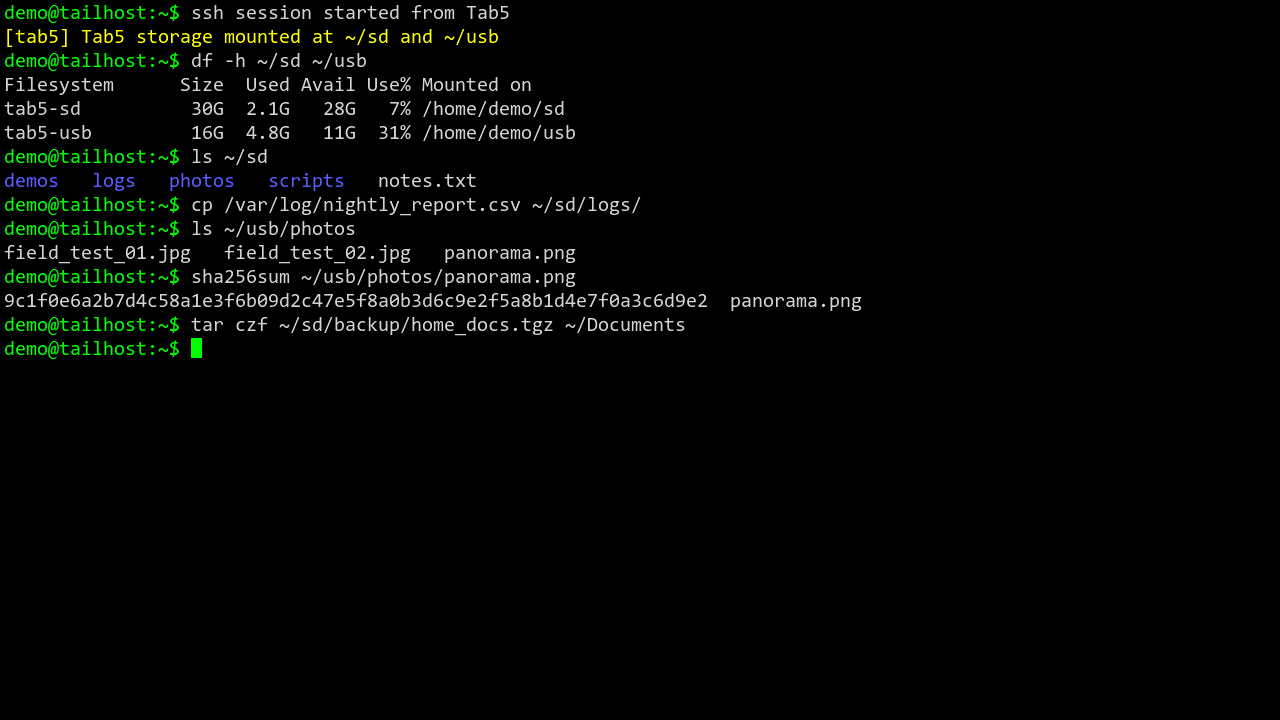
Your everyday commands — cp, tar, rsync — operate directly on Tab5 storage. Copy build artifacts or logs into ~/sd and carry them home on the tablet. The server-side image command can even display pictures from ~/sd on the Tab5 screen.
The Tab5-local CLI exposes three volumes as a virtual filesystem: onboard flash (/flash), microSD (/sd), and USB storage (/usb). The server-side mounts cover microSD and USB. Server requirements: Python 3 + FUSE user mounts (setup guide).
Start MicroPython from the local CLI and run scripts from the SD card. Scripts draw through the gfx object and push frames with gfx.present().
tab5:/$ python -c print('hello')
hello
tab5:/$ python /mandel.py 0 1 8 -1   # progressive Mandelbrot
tab5:/$ python /plasma.py 0 160 16   # sine plasma
tab5:/$ python /life.py              # Conway's Game of Life
Bundled demos: progressive Mandelbrot, sine plasma, wireframe hat, Game of Life, starfield, and maze. See the Python API docs and the demo list.
gfx command processing, and present() transfer simulate their execution speed on Tab5.The next major upgrade is VPN access from Tab5 through a WireGuard gateway to SSH hosts inside a Tailscale network. Work is staged so portability, connectivity, and practical performance are validated in order. These features are not implemented yet. See the VPN implementation and measurement plan (Japanese).
Build an lwIP WireGuard implementation under pioarduino and verify initialization and basic operation. Fall back to another implementation or SSH jumping if it is not viable.
Add VPN list/editor UI, vpn connect/status commands, split tunneling, and MagicDNS. SSH profiles will bring up their required VPN automatically.
Compare SSH/SCP/FUSE throughput, CPU and free heap, eight-hour connection stability, Wi-Fi recovery, and battery runtime before calling the design practical.
Make LittleFS mounting and Wi-Fi/SSH profile persistence reliable, including launches through M5Launcher. Progress is tracked in Issue #1.
| Hardware | M5Stack Tab5 / Tab5 Keyboard / microSD card / USB cable |
|---|---|
| Network | A Wi-Fi network the Tab5 can join, and an SSH server to talk to |
| Server side (optional) | For the storage-mount feature: Python 3 + FUSE user mounts (setup guide) |
Built with PlatformIO. See the README for details.
# build
pio run -e tab5

# flash the firmware
pio run -e tab5 -t upload

# full flash: bootloader / partition table / firmware / LittleFS
.\tools\flash_tab5.ps1 -Port COM4